An iPhone can warn that storage is almost full even when the Storage screen shows free space, because iOS needs room for temporary files during updates and caches that are not counted the way you expect. Check the real breakdown, clear caches and offload large media to make the warning disappear.
This guide walks through the process in clear illustrated steps, from the first preparation to a finished result. Each step has its own picture, so you can compare your progress as you go.
How to use this guide
Work through the steps in order. Method 1 of 2 covers the basics, and the later methods offer alternatives and finishing touches. If you only have a minute, skim the Quick steps box above and come back for the details.
Related guides
- How to Avoid roaming charges abroad
- How to Add carbs to your protein shake
- How to Make a budget
- How to Cook rice
- Browse all Fix Slow Device guides
- All 52runoob guides
Trusted external resources
- Apple Support — Free up iPhone storage
- Apple Support — Check iPhone storage
- Apple Support — Offload apps
A note on sources
We check each guide against the official resources listed in References at the end of this article. External links open in a new tab; the related guides above stay on this site.
Quick steps
- Restart the iPhone to clear stale storage calculations.
- Check the real usage breakdown in iPhone Storage.
- Empty the Photos Recently Deleted album.
- Offload unused apps and delete cache-heavy media.
- Update iOS to the latest release.
Things you'll need
- An iPhone with a Storage warning
- Access to Settings, General, iPhone Storage
- A Wi-Fi connection for iCloud
- About 20 minutes
Step-by-step
Method 1 of 2: Recheck the Real Storage
Step 1: Restart the iPhone
Power off and back on to refresh the storage calculation and clear stale temporary files.

Step 2: Open iPhone Storage
Go to Settings, General, iPhone Storage and wait for the categories to load fully.

Step 3: Read the breakdown
Look at which categories consume the most space rather than trusting the warning banner alone.

Step 4: Check for a pending update
If an iOS update is downloading, it can reserve space temporarily, so note that in the total.
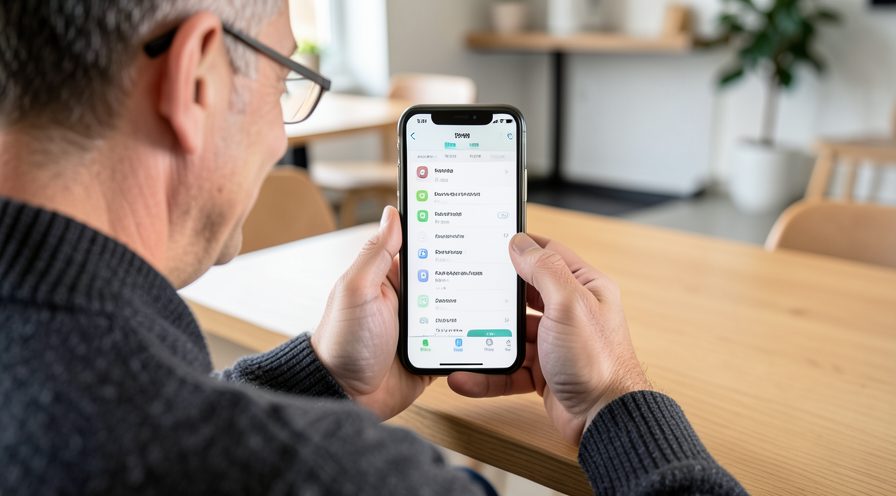
Step 5: Update iOS
Install the newest iOS release in case the warning is a known bug that Apple fixed.

Step 6: Empty Recently Deleted
Open Photos, Albums, Recently Deleted and remove items you are sure you no longer need.

Step 7: Offload unused apps
In iPhone Storage, tap an unused app and choose Offload App to keep its data but free its size.

Step 8: Delete downloaded videos
In streaming apps, remove downloaded movies and shows that are stored locally on the phone.

Step 9: Clear message attachments
In Messages, delete conversations with many photos or videos, or set messages to keep forever with care.

Step 10: Recheck free space
Return to iPhone Storage and confirm the available space has increased and the warning is gone.

Tips
- iOS reserves space for updates, so usable space looks smaller than total.
- The Photos deleted album still occupies space for 30 days.
- Offloading removes the app but keeps its documents.
Warnings
- Do not delete iOS system files; there is no safe manual way to do this.
- Emptying Recently Deleted is permanent, so check photos first.
- Third-party cleaners cannot safely free iPhone storage.
Frequently asked questions
Why does my iPhone say storage is full when it shows free space?
iOS uses part of the space for temporary files, system caches and update staging that are not shown as free. A stale calculation after a restart can also cause the warning. Restarting and rechecking the storage breakdown usually resolves it.
Does the Recently Deleted album still use space?
Yes. Photos and videos stay in Recently Deleted for 30 days and continue to occupy storage until you remove them permanently.
What does offloading an app do?
Offloading removes the app itself but keeps its documents and data. The app shows with a cloud icon and can be reinstalled when you tap it, freeing space without losing your information.
Can a cleaner app fix iPhone storage?
Not safely. iOS sandboxes apps so third-party cleaners cannot remove system caches. Use the built-in iPhone Storage tools, which are the reliable way to free space.
References
- Apple Support — Free up iPhone storage. https://support.apple.com/en-us/102433
- Apple Support — Check iPhone storage. https://support.apple.com/en-us/102433
- Apple Support — Offload apps. https://support.apple.com/en-us/102433
- wikiHow — How to Fix iPhone "Storage Almost Full" When There Is Free Space. https://www.wikihow.com/Free-Up-Space-on-an-iPhone
Every guide is reviewed against its sources. See our editorial policy.


Reader comments
0 so farFinished this guide? Tell other readers what worked, what didn't, and what you would change.