When internal storage is almost full, Android struggles to cache app data and apply updates, and the whole phone slows down. Free a healthy amount of space by removing old media, clearing app caches and moving photos to the cloud.
This guide walks through the process in clear illustrated steps, from the first preparation to a finished result. Each step has its own picture, so you can compare your progress as you go.
How to use this guide
Work through the steps in order. Method 1 of 2 covers the basics, and the later methods offer alternatives and finishing touches. If you only have a minute, skim the Quick steps box above and come back for the details.
Related guides
- How to Write a lab report
- How to Fix a leaky faucet
- How to Use a credit card responsibly
- How to Build a healthy relationship
- Browse all Fix Slow Device guides
- All 52runoob guides
Trusted external resources
- Google Support — Free up space on your phone
- Google Support — Manage Files by Google
- Google Support — Back up photos
A note on sources
We check each guide against the official resources listed in References at the end of this article. External links open in a new tab; the related guides above stay on this site.
Quick steps
- Check how much free space remains in Storage settings.
- Delete old downloads and unused apps.
- Clear caches for cache-heavy apps.
- Back up and remove photos and videos from the device.
- Keep at least 15 to 20 percent of storage free.
Things you'll need
- An Android phone with low free storage
- Access to Settings, Storage and Files
- A Wi-Fi connection for cloud backup
- About 30 minutes
Step-by-step
Method 1 of 2: Find What Uses the Space
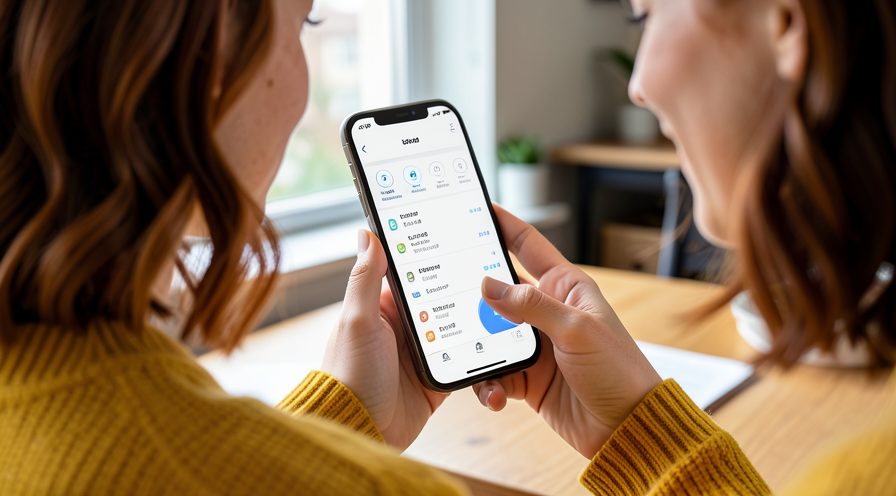
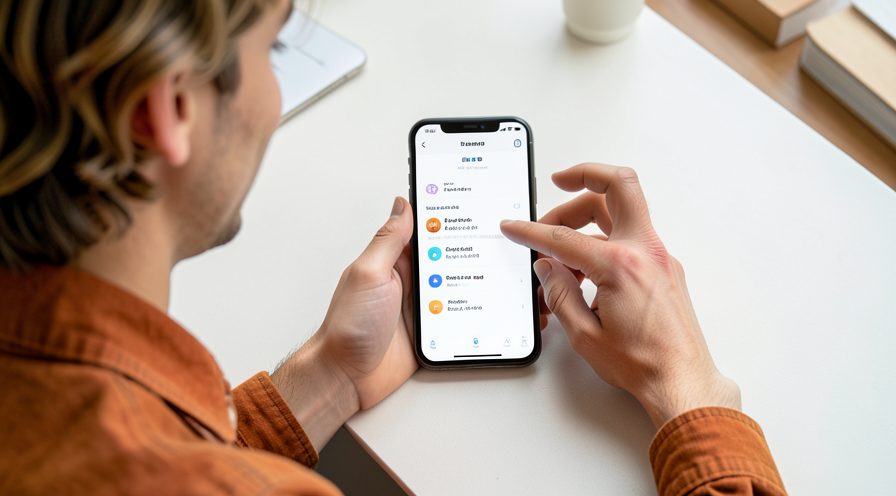
Step 1: Open Storage settings
Go to Settings, Storage and check the used and free amounts.
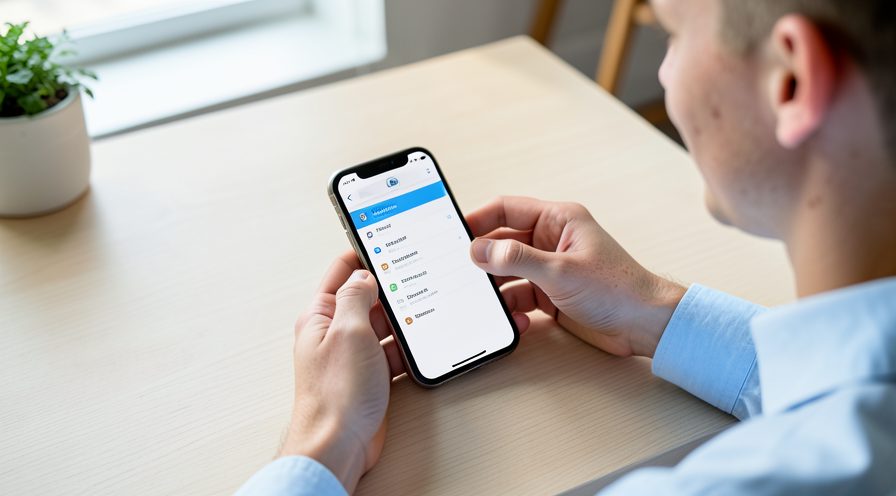
Step 2: Review category breakdown
Look at photos, videos, apps and downloads to see which category dominates.
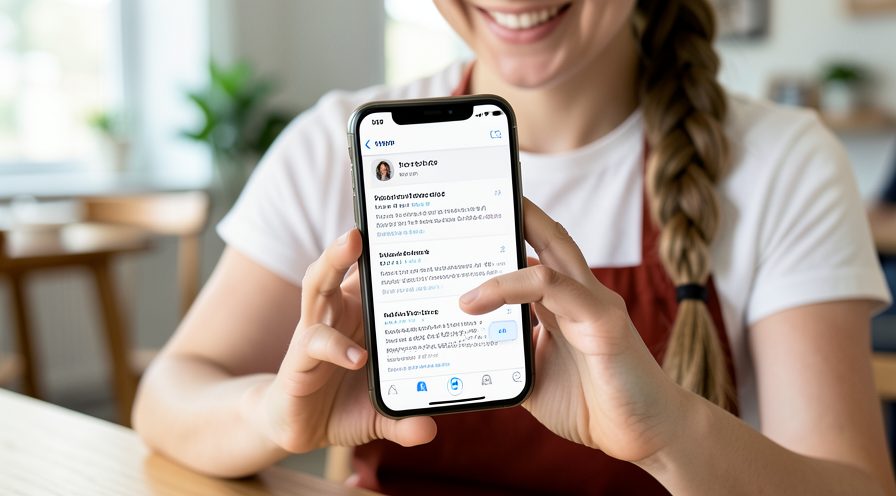
Step 3: Find large files
Use Files by Google or your file manager to sort files by size.
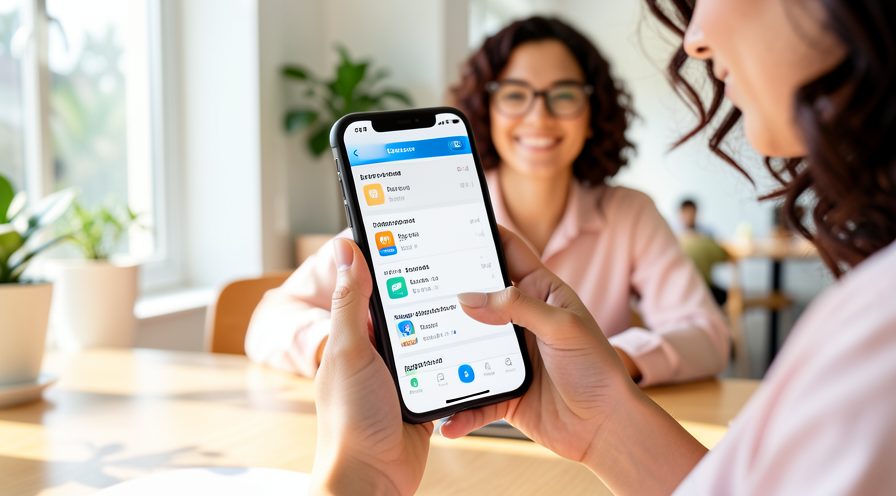
Step 4: Note cache-heavy apps
Identify apps with large cache entries, usually video and social apps.
Method 2 of 2: Free Space Safely
Step 5: Delete old downloads
Remove downloaded files and installers you no longer need.

Step 6: Back up and remove media
Upload photos and videos to the cloud, then use the backup app's free-up-space tool.
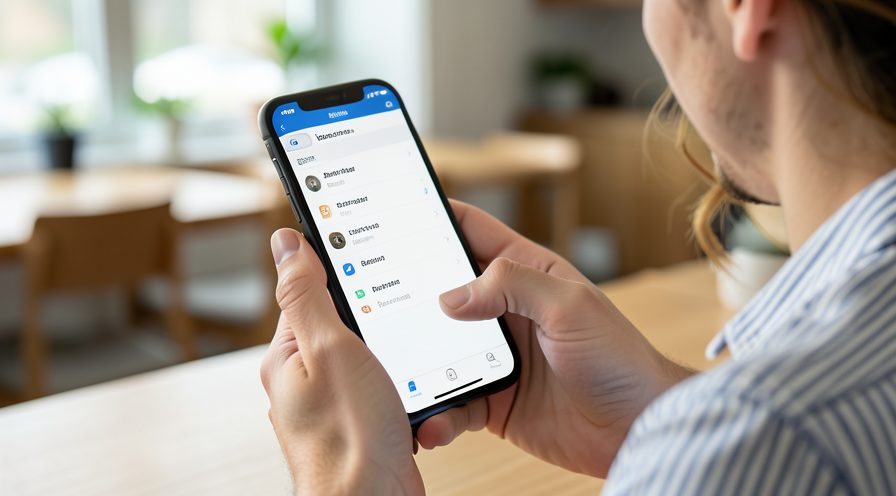
Step 7: Clear app caches
For heavy apps, open App info, Storage and clear cache only.
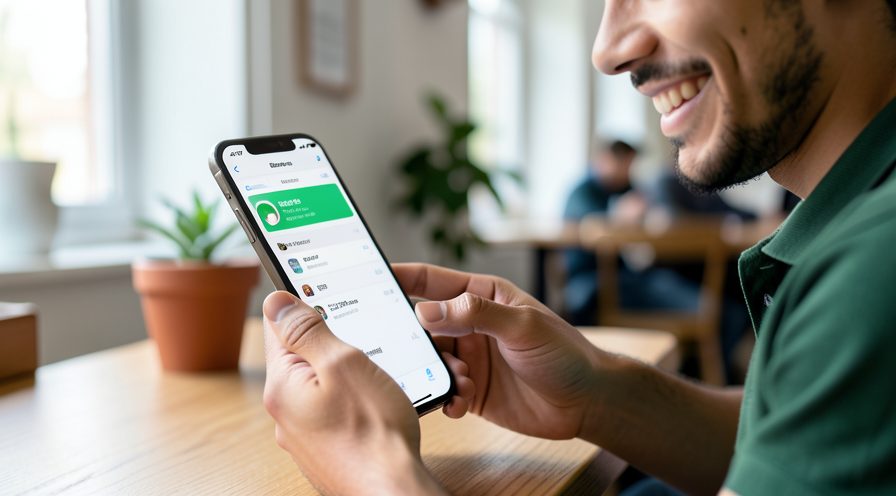
Step 8: Uninstall unused apps
Remove apps you never use to reclaim their storage and background activity.
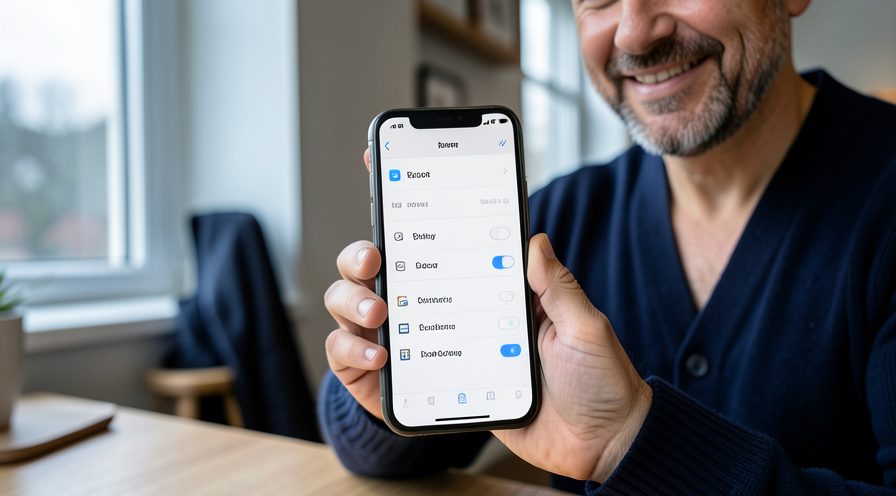
Step 9: Restart and recheck
Restart the phone and confirm free space is now above the safe threshold.
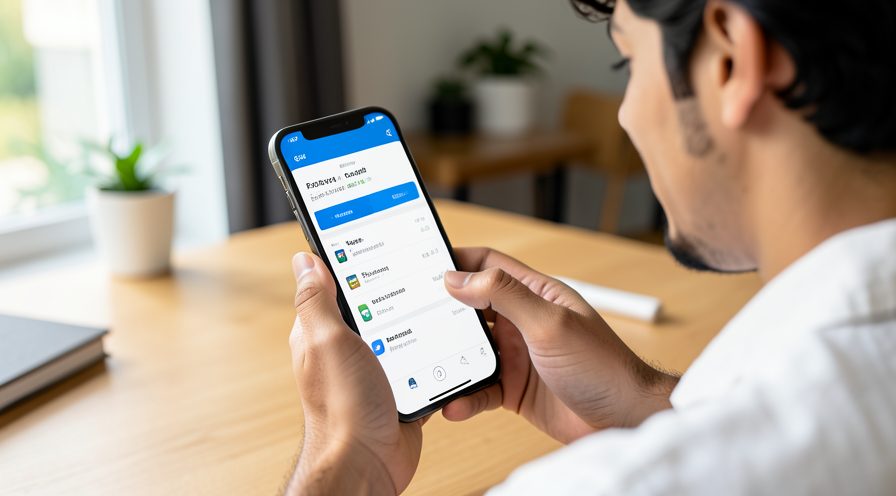
Step 10: Test performance
Use the phone normally and confirm lag has reduced with the extra free space.
Tips
- Keeping storage free is one of the simplest speed fixes on Android.
- Files by Google can suggest safe files to remove in bulk.
- Cached video files in streaming apps are often several gigabytes.
Warnings
- Do not delete files you have not backed up.
- Clearing an app's data signs you out and resets its settings.
- Avoid downloading 'clean master' style apps with intrusive ads.
Frequently asked questions
Why does a full storage slow my phone?
Android needs free space to cache app data, stage updates and manage memory. When storage is nearly full, these operations slow down or fail, which the whole interface feels as lag.
How much free space should I keep?
Aim for at least 15 to 20 percent of total storage free. This gives the system room to work and keeps updates and app caches functioning normally.
Is it safe to clear app caches?
Yes. Clearing cache removes temporary files and is safe. Clearing data is different and resets the app including logins, so choose cache unless you intend a full reset.
Will moving photos to the cloud free real space?
Yes, if you then remove them from the device. Many backup apps offer a 'free up space' option that deletes local copies after confirming they are safely uploaded.
References
- Google Support — Free up space on your phone. https://support.google.com/android/answer/9551190
- Google Support — Manage Files by Google. https://support.google.com/android/answer/9501460
- Google Support — Back up photos. https://support.google.com/photos/answer/6193313
- wikiHow — How to Fix Android Phone Slow When Internal Storage Is Nearly Full. https://www.wikihow.com/Free-Up-Space-on-an-Android-Phone
Every guide is reviewed against its sources. See our editorial policy.

Reader comments
0 so farFinished this guide? Tell other readers what worked, what didn't, and what you would change.