Shared Drive files open in a click when you have the right link or permission. This illustrated guide covers 3 methods and 16 steps, with a separate picture for every step.
This guide walks through the process in clear illustrated steps, from the first preparation to a finished result. Each step has its own picture, so you can compare your progress as you go.
How to use this guide
Work through the steps in order. Method 1 of 3: Open a Shared Link covers the basics, and the later methods offer alternatives and finishing touches. If you only have a minute, skim the Quick steps box above and come back for the details.
Related guides
- How to Use Google Drive
- How to Share a Google Doc
- How to Download from Google Drive
- How to Use Google Docs Offline
- Browse all Technology guides
- All 52runoob guides
Trusted external resources
A note on sources
We check each guide against the official resources listed in References at the end of this article. External links open in a new tab; the related guides above stay on this site.
Quick steps
- Open the shared link while signed in to the right Google account
- Find files others shared with you under the Shared with me section
- Request access if the file will not open
Things you'll need
- A computer or phone with internet
- A Google account
- The shared link or the owner's contact
- A web browser or the Drive app
Step-by-step
Step 1: Sign in first
Log in to the Google account the file was shared with.
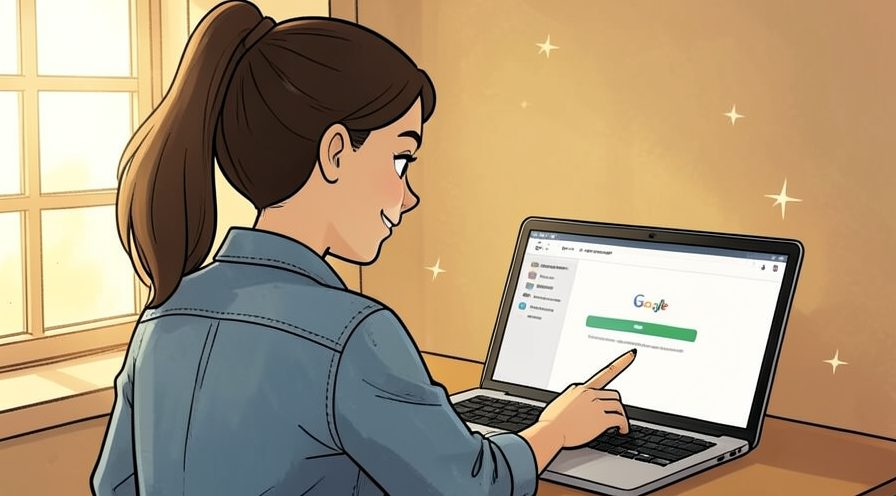
Step 2: Open the link
Click or paste the shared link into your browser.

Step 3: Check your access
Confirm you can view or edit the file as intended.
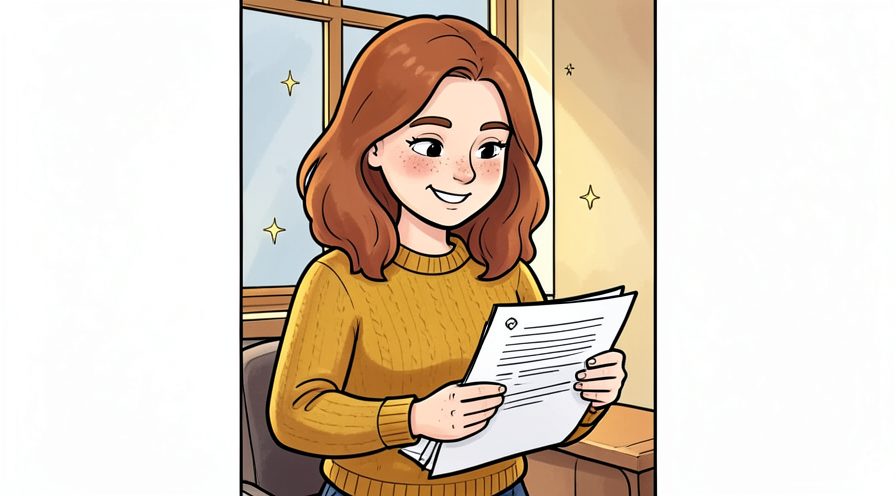
Step 4: Open with the right app
Let the file open in Docs, Sheets, or Slides as appropriate.
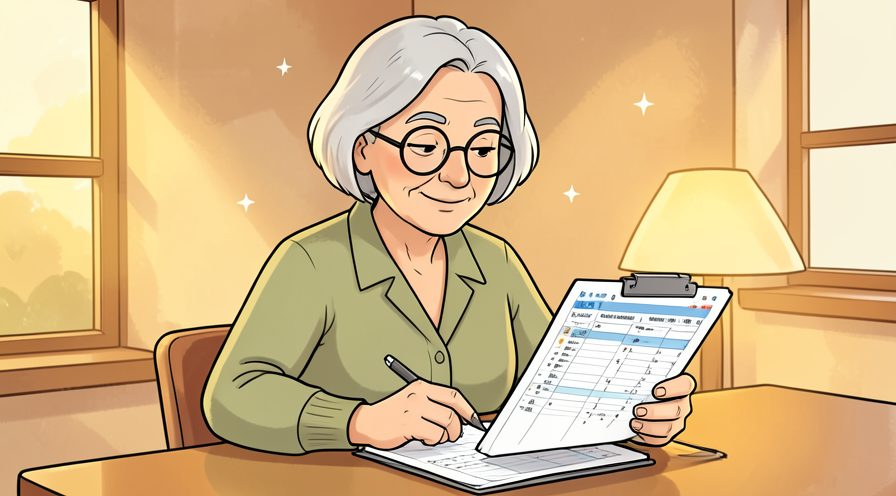
Step 5: Bookmark the file
Save the link so you can return to it quickly.
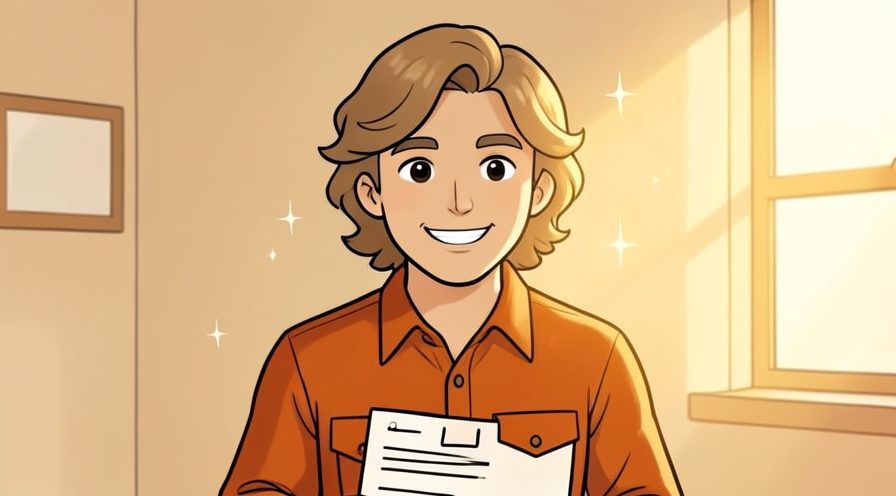
Step 6: Open Google Drive
Go to Drive and sign in to your account.
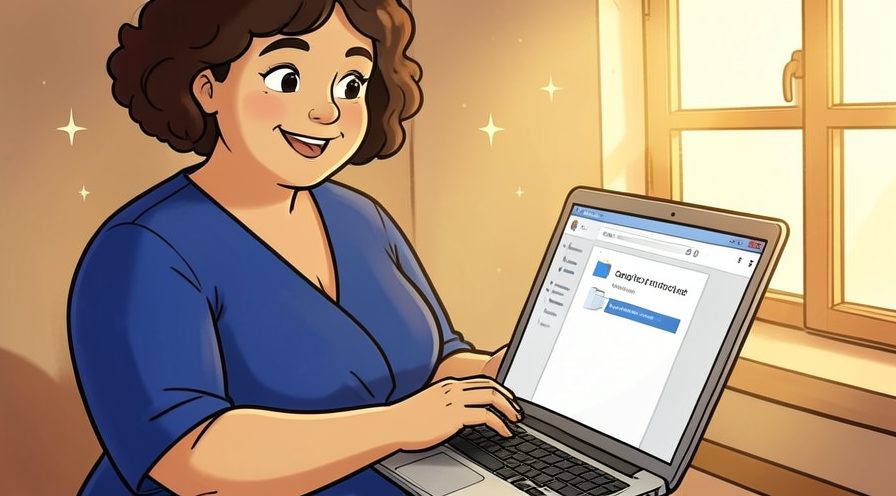
Step 7: Click Shared with me
Select that section in the left sidebar to see shared files.

Step 8: Sort by date or name
Arrange the list to find the file you need faster.
Step 9: Use the search bar
Type the file name or owner to filter the results.
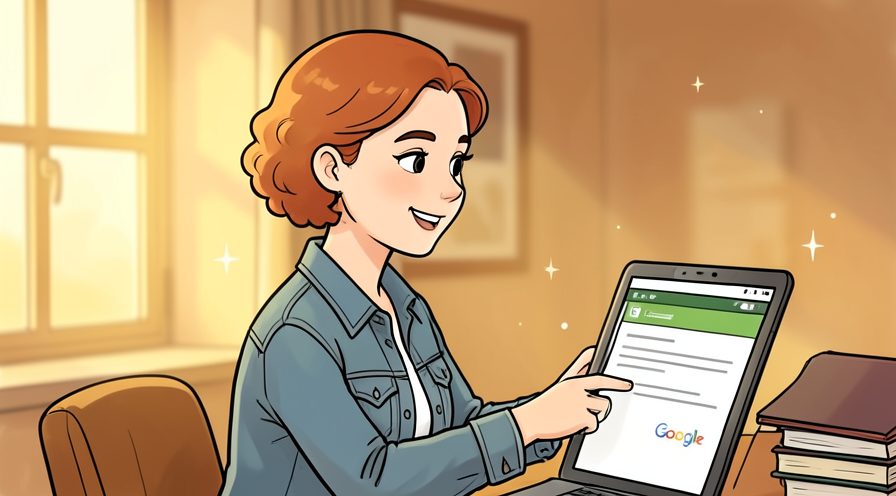
Step 10: Open the document
Double-click the file to open it.
Method 3 of 3: Fix Access Problems :: Get in when permission is missing.
Step 11: Check the signed-in account
Switch accounts if the link was shared with a different address.
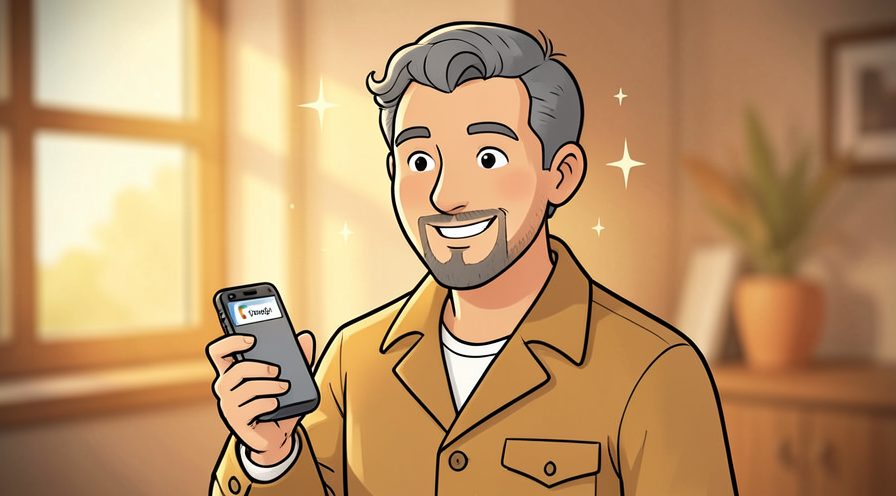
Step 12: Request access
Click Request access so the owner can grant permission.
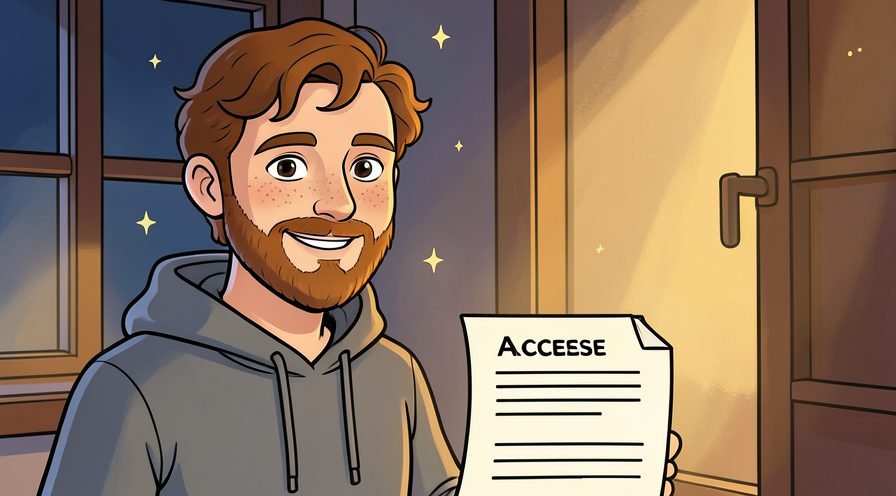
Step 13: Contact the owner
Ask the person who shared it to check the sharing settings.
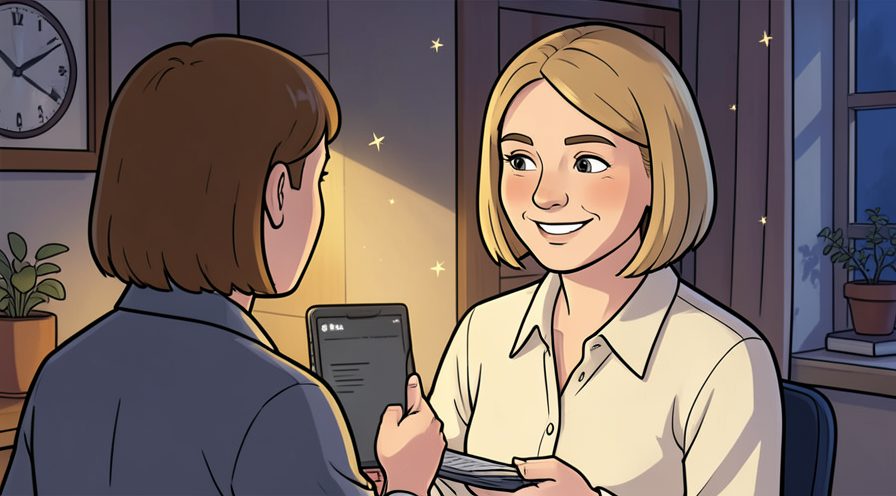
Step 14: Check your spam folder
Look for a sharing notification that landed in spam.
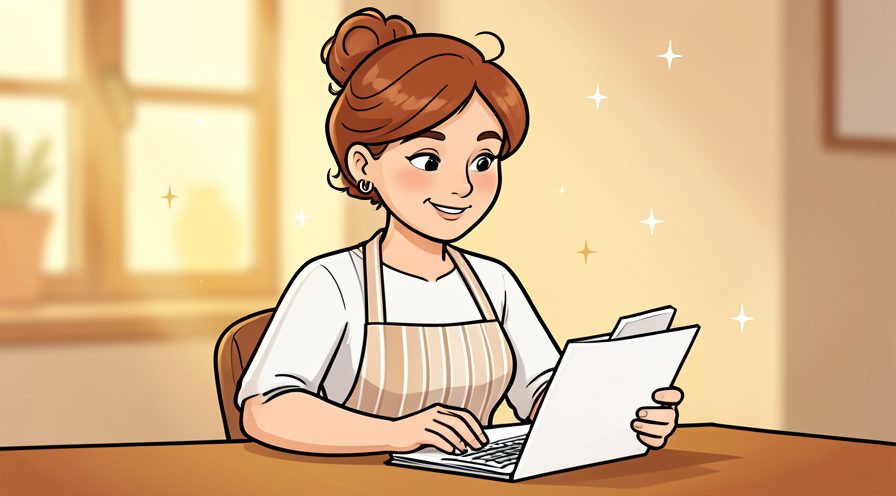
Step 15: Ask for a direct download
If editing is not needed, request a PDF or copy instead.
Tips
- Check which account is signed in if a link says you do not have access.
- Files shared 'with the link' open for anyone who has the URL.
- See How to Share a Google Doc to share your own files.
Warnings
- Do not forward private links to people who should not see the file.
- Opening a suspicious file can expose your account; only open links you trust.
Frequently asked questions
Why can't I open a shared link? You may be signed into the wrong account or need the owner to grant access.
Where are shared files? Look under Shared with me in the left sidebar of Drive.
Can I edit a shared file? Only if the owner gave you edit permission.
References
- Google Drive Help — sharing files. https://support.google.com/drive/
- Google Docs Help — sharing documents. https://support.google.com/docs/
- Wikipedia — Google Drive. https://en.wikipedia.org/wiki/Google_Drive
- wikiHow — How to Access Shared Google Drive Documents. https://www.wikihow.com/access-shared-google-drive-documents
Every guide is reviewed against its sources. See our editorial policy.


Reader comments
0 so farFinished this guide? Tell other readers what worked, what didn't, and what you would change.